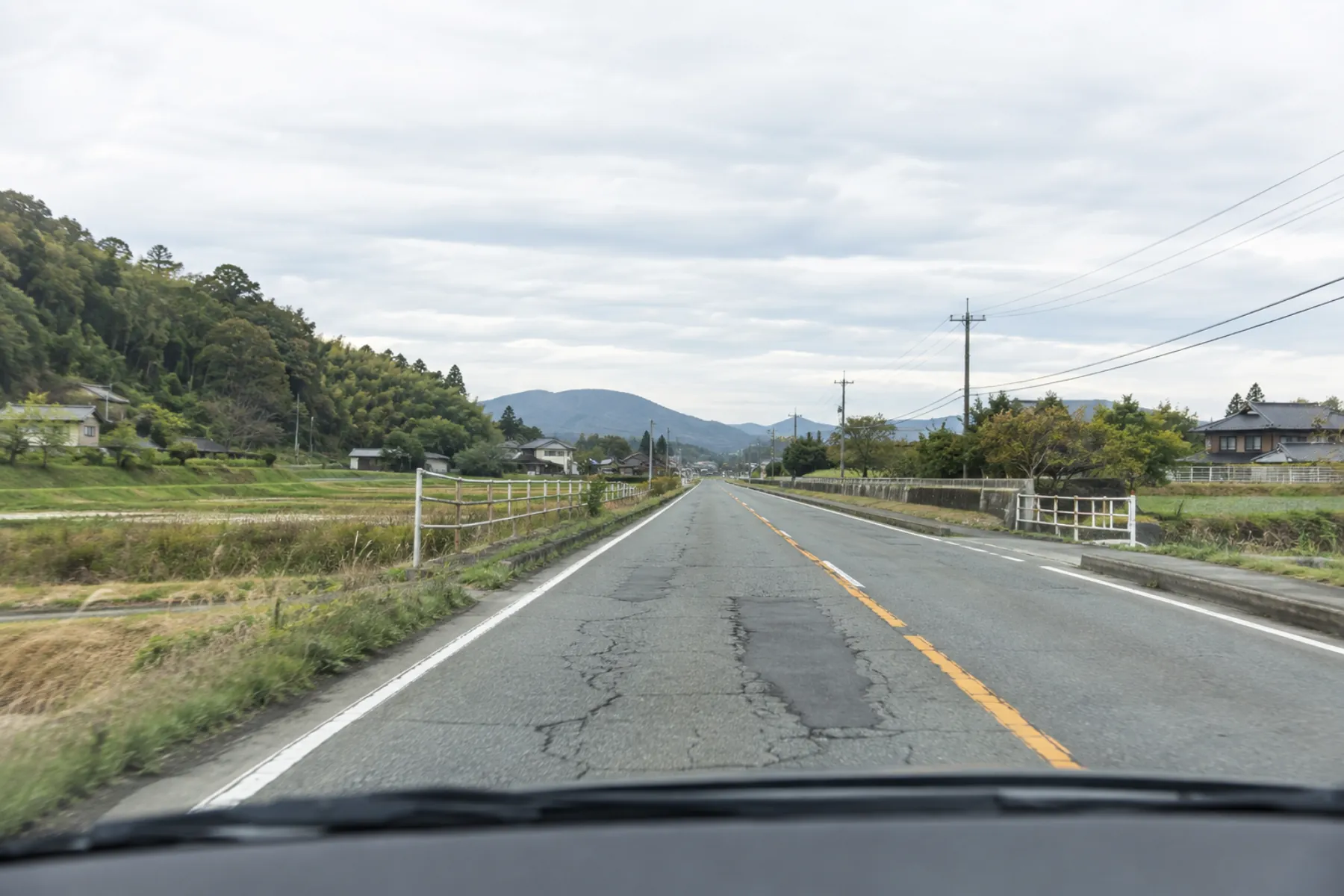
AI models, turned into apps for the field
Model Lab's open models, or models made to your needs, built into phone and web apps.
The models are free, but in the field you need a system that spots things in camera video, alerts people and keeps a record. That system is what gets built.
Telling snowplows where they must not throw snow
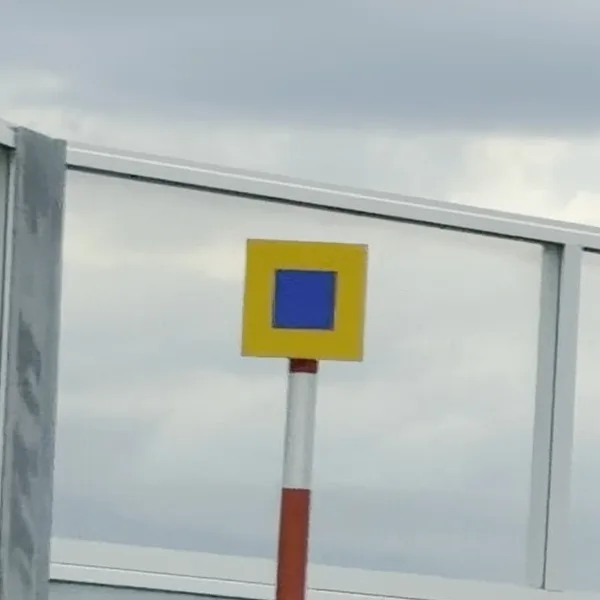
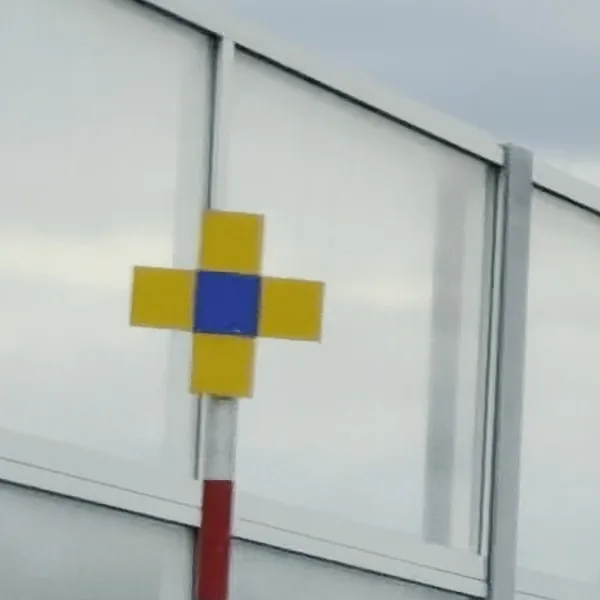
A phone in the vehicle spots the roadside signs and announces where the zone starts and ends.
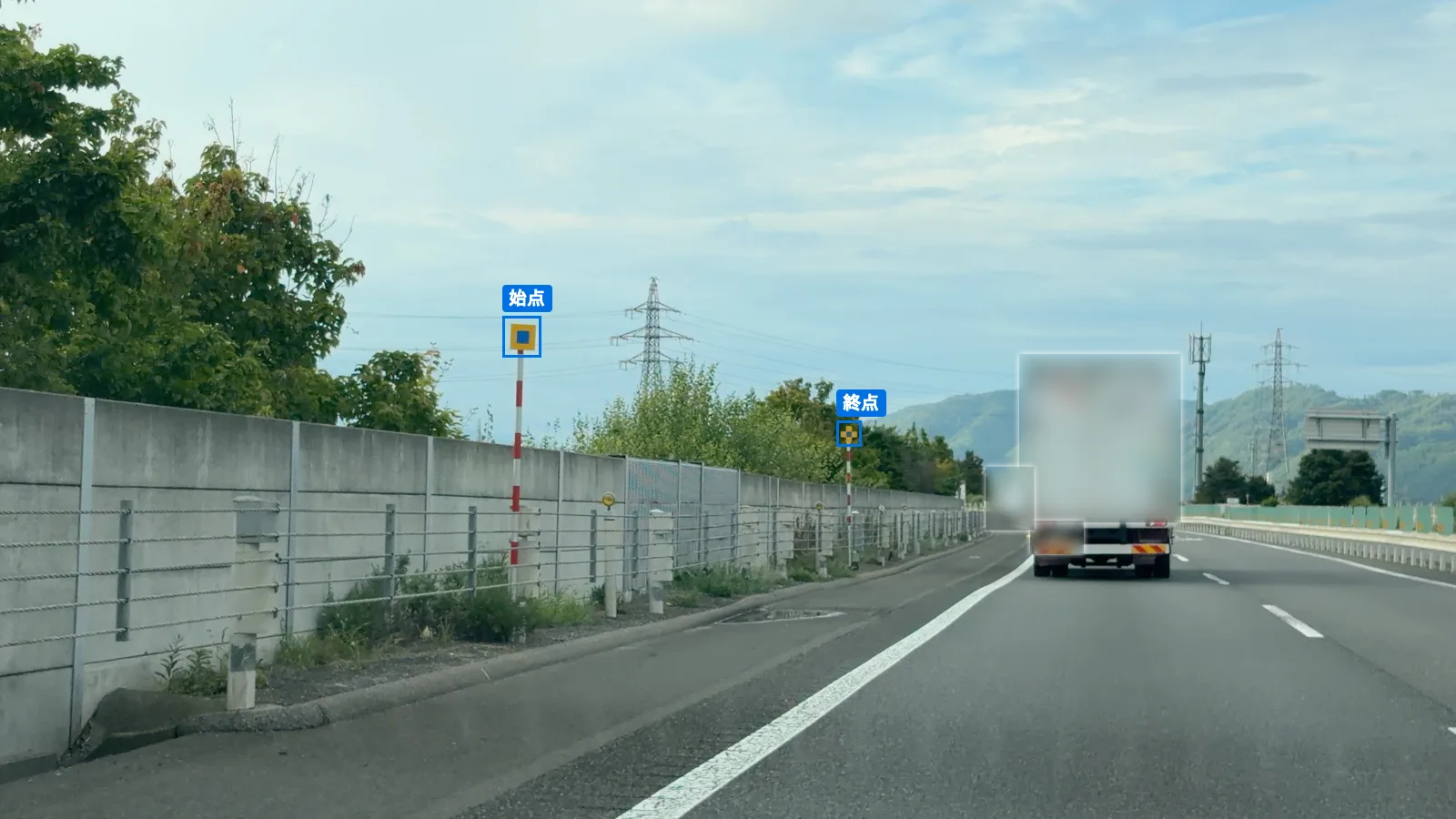
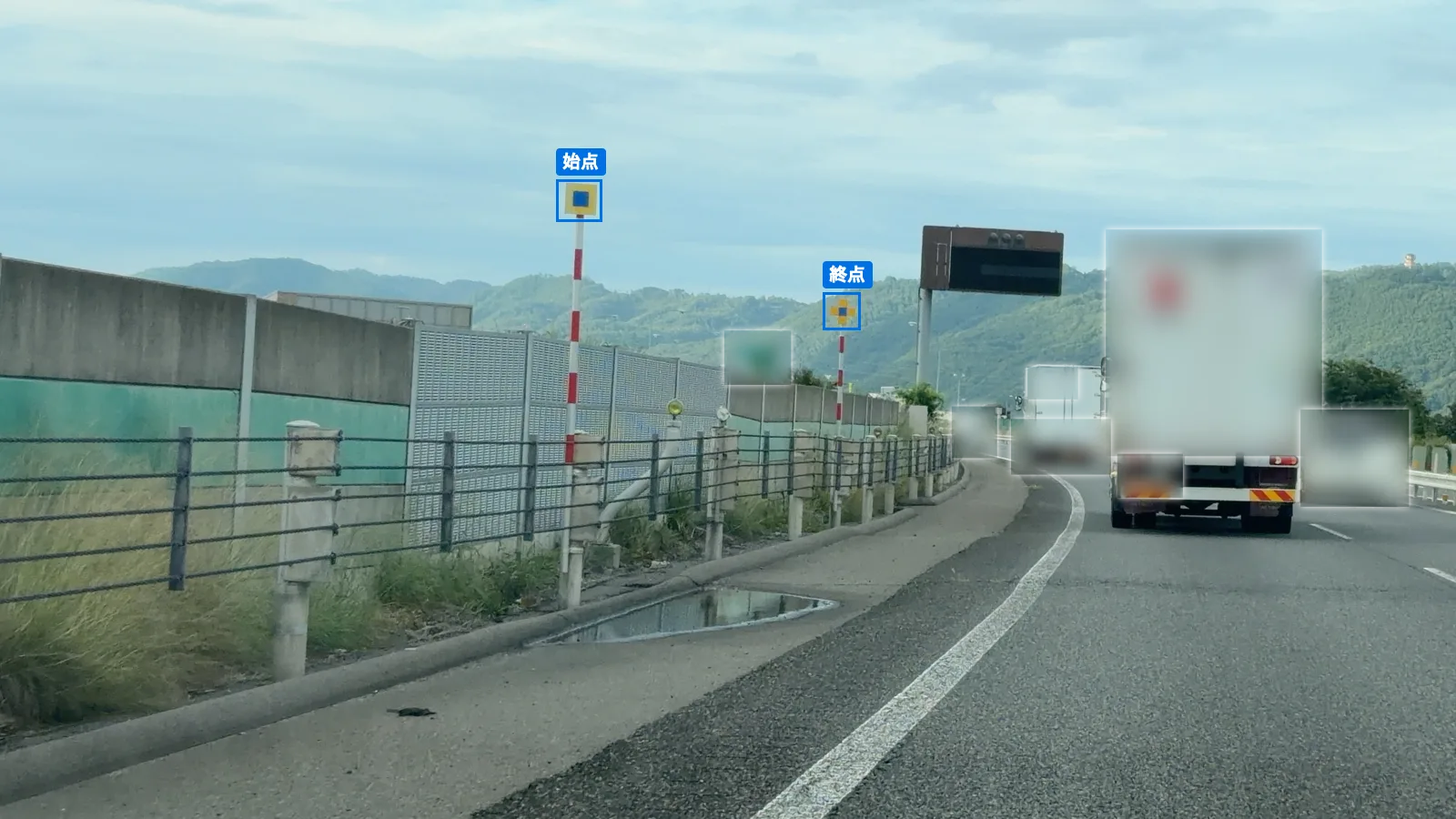
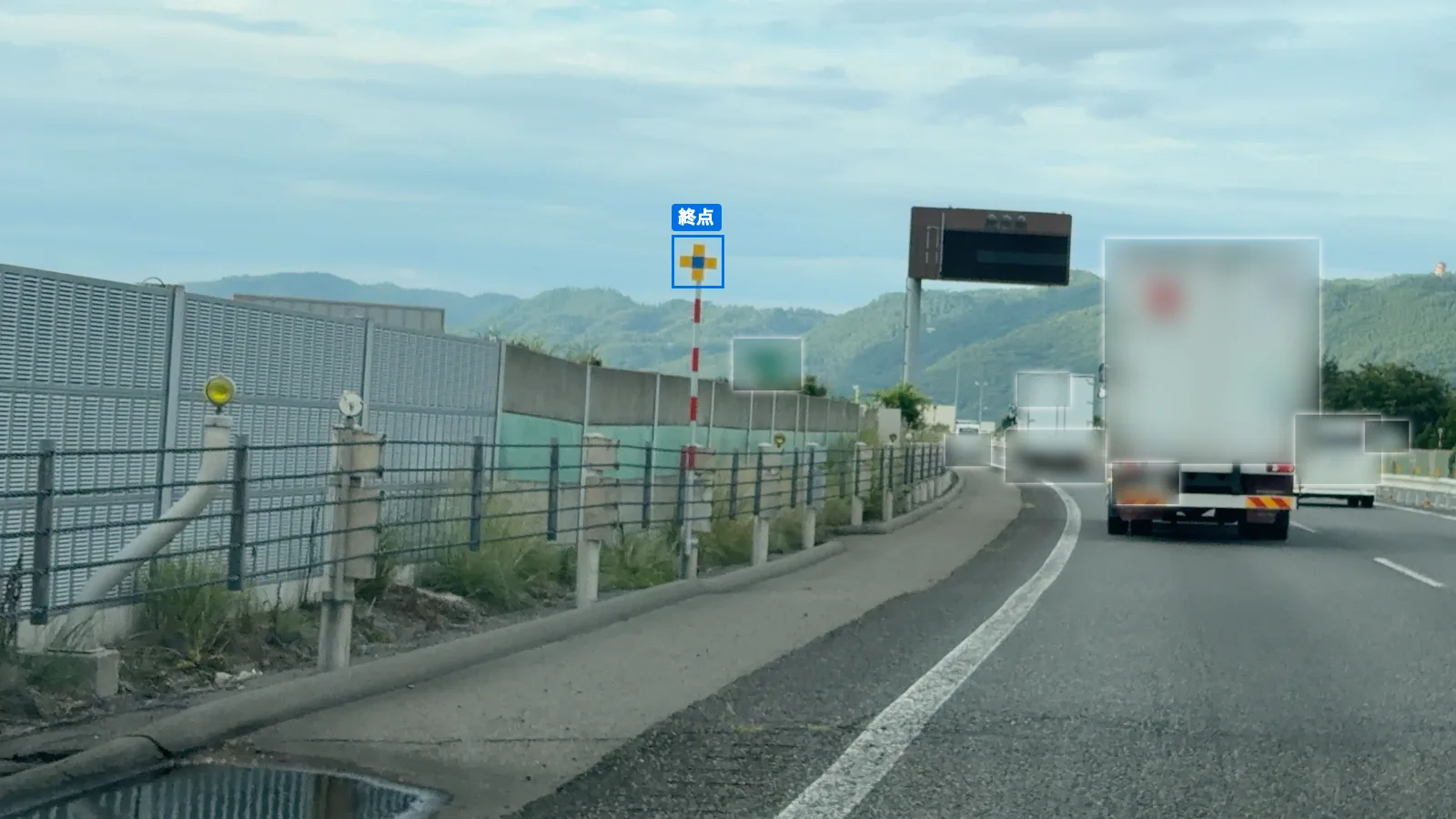
The model's boxes, shown as-is on driving footage it was not trained on.
- Detects
- Signs marking the start and end of the zone
- Runs on
- A phone in the vehicle
- When found
- Sounds an alert and records the spot and photo
Runtime and evaluation details
- Runs on
- On the phone. The same model runs twice: on an unscaled crop of part of the frame for distant signs, and on the scaled-down full frame for near ones.
- Evaluation
- On 57 test images not used in training, it detected 12 of 18 start signs and 17 of 21 end signs, with no start/end mix-ups. Only signs inside the distant crop were counted. Night and snowy conditions have not been tested yet.
More uses
Map every sign and curve mirror
Just drive, and you get a list of what to inspect.
Record potholes as you drive
Pothole photos and locations build up on the map.
Blur vehicles before publishing
Vehicles in photos and video are found and blurred automatically.
Find rust and peeling in inspection photos
Send photos, and they come back with the spots to check marked.
When it finds one, color and sound tell you
Red and green screens and sounds do the talking, so no one has to touch the screen while driving.
-
Scanning
Looking for signs ahead
StopResetDriveRecordsSettings01Once moving, it looks for signs in the forward view.
-
No throwing
Start sign confirmed
StopResetDriveRecordsSettings02On finding the start sign, the screen turns red and a buzzer sounds.
-
Throwing OK
Passed the end sign
StopResetDriveRecordsSettings03After passing the end sign, it turns green and a chime sounds.
-
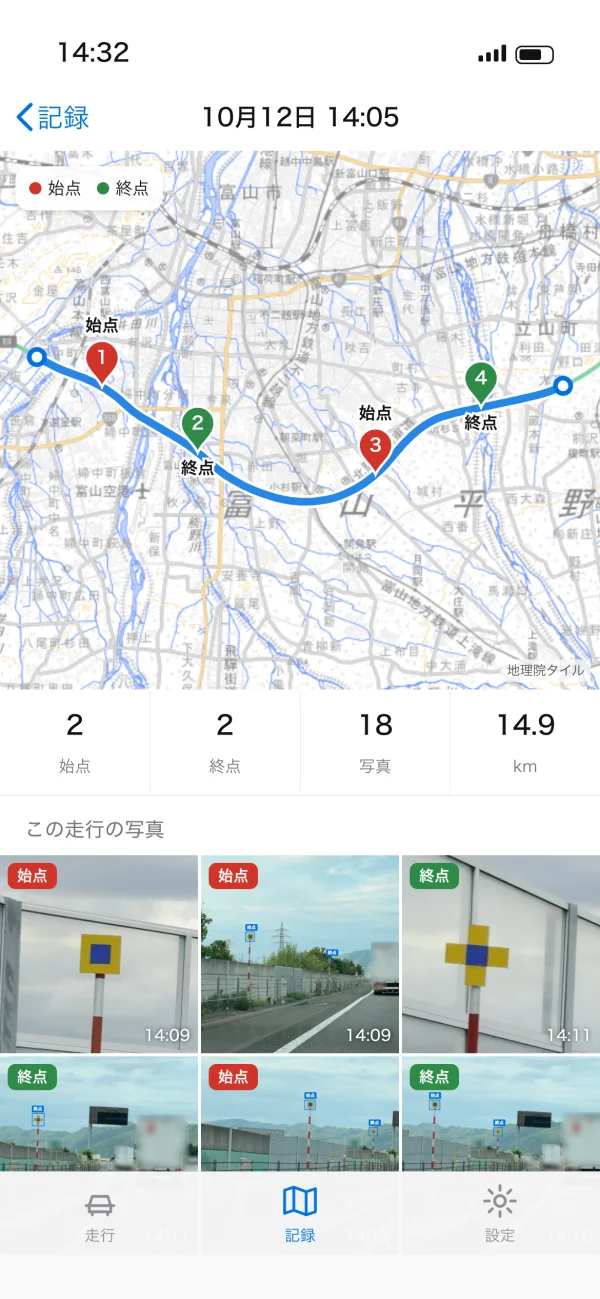
04Each spot is recorded with a photo and can be reviewed on a map.
Map: GSI Tiles (Geospatial Information Authority of Japan)
- No signal needed
- It runs on the phone, so it works in tunnels and mountains.
- For other uses
- Screens and alerts are designed around who does what after a detection.
- 01
Open models, ready to try
If a Model Lab model does the job, work starts straight on the app.
- 02
Nothing suitable? Build the model too
A few hundred photos are enough to start.
- 03
Fit to the people and the place
Phones, field devices or the cloud, whatever suits the job.
From request to delivery
Deliverables
- 01
Consultation
Talk through what to detect and where it will be used, and shape the app.
- 02
The model
Use an open model or build a new one.
- 03
App development
Alerts and records are designed around how the app will be used.
- 04
Try and refine
Use it in the field, and the model and app are improved from there.
FAQ
Q.01Are Model Lab's models free?
Yes. The fee is for developing the app.
Q.02Can you detect something no open model covers?
Yes. A model is built for what you need to find.
Q.03How accurate is it?
It depends on the target and the images. You see the results of a small trial before deciding whether to continue.
Q.04Who owns the app?
This is agreed case by case in the contract. Data you provide is never used for other purposes.

Start by describing your situation
Whether it is a MICHIKARTE trial or an AI app, your plans do not need to be final. Describe the photos or video you have and what you are struggling with, and you will get an email reply on what can and cannot be done. The contact form is in Japanese, but you are welcome to write in English.